How Icon Maker Pro works
Turn a 3D model into a clean, game-ready icon in under a minute.
- 1
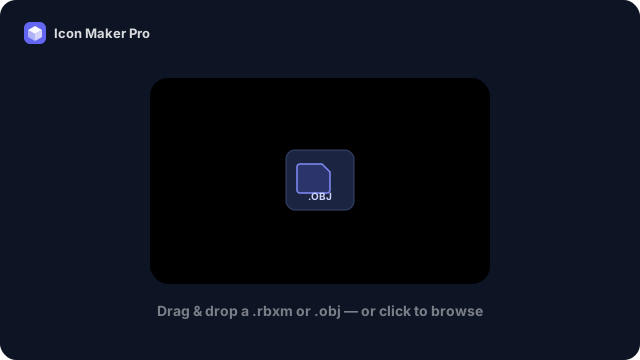
Import your model
Drag a .rbxm or .obj straight onto the canvas — drop the .mtl and texture files alongside an .obj. Everything is parsed right in your browser; no upload, no account.
- 2
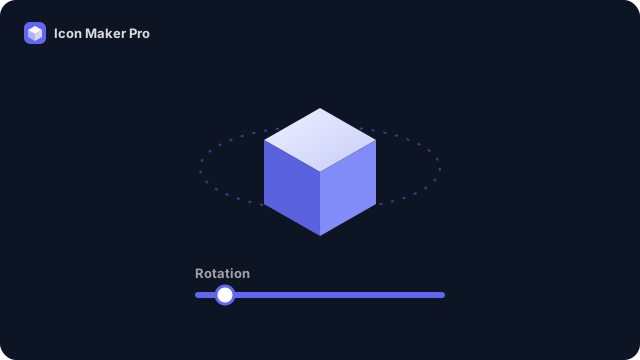
Frame the shot
Spin, tilt, roll, zoom and nudge the model with the Camera sliders — or just drag and scroll directly on the preview — until it sits exactly how you want it.
- 3
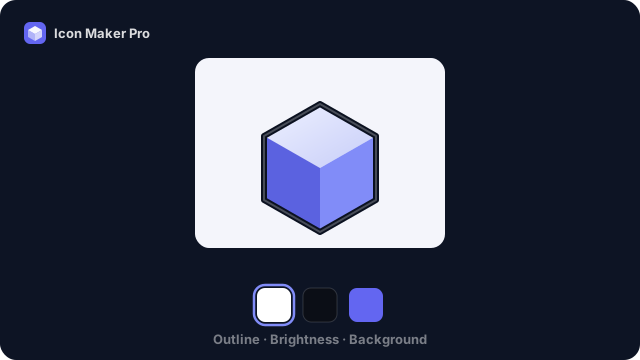
Give it style
Add a crisp outline, fine-tune brightness and saturation, toggle shadows, and choose a background: white, black, transparent, or any custom color.
- 4
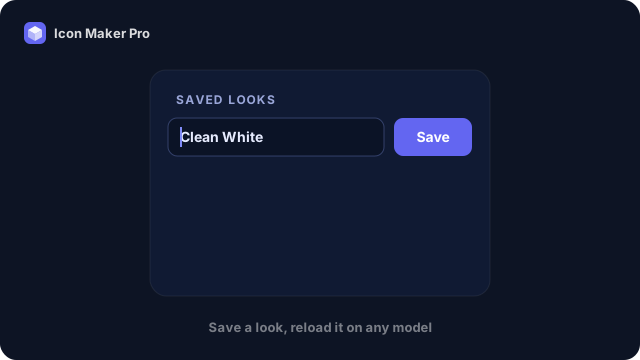
Save looks to reuse
Happy with a style? Save it under Saved Looks and reload the exact same settings on any model later with a single click.
- 5
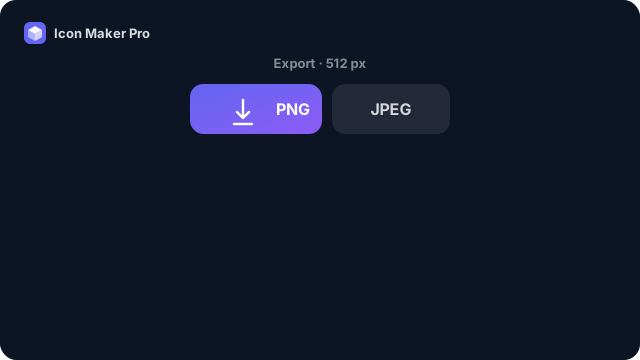
Export your icon
Download a crisp PNG (transparency kept) or a JPEG at 256–2048px — ready to drop straight into your game.
Try it with a sample model
No model on hand? Grab this sample blaster, then drag both files onto the app together.